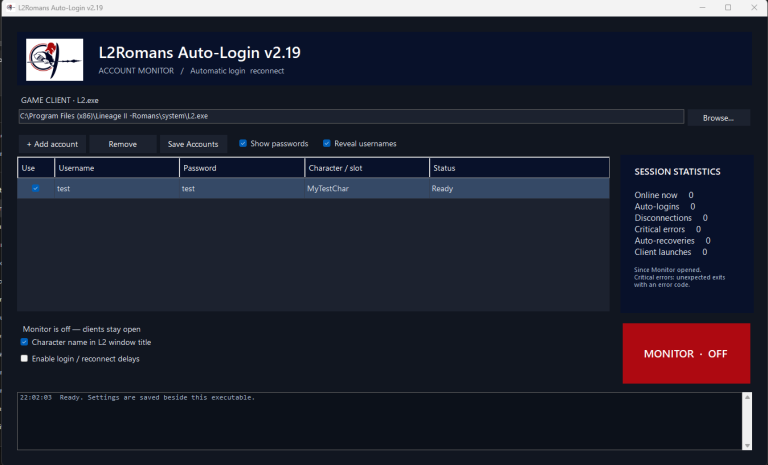
It’s an executable that manages your accounts. It can launch your game client, and automatically log in all defined / stored accounts. If monitor is turned “on”, AutoLogin automatically logs back your account in case of network failures, game crash and so on.
You can monitor each client’s status and display the character’s name in the game window title. Login delays are optional and disabled by default.
How to use autologin?
- Unzip it into a folder of your choice, run L2Romans Auto-Login.exe, and select your L2.exe location
(right-click it → Properties → tick Unblock (if shown) → Apply. Then extract it and run the EXE.). - In a next step add your accounts, choose a character by name or slot (slots start at 0), tick the accounts you want to use.
- Final step is to turn the monitor on.
Closing the window keeps it running in the system tray. To stop it completely, right-click the tray icon and select Exit.
You don’t have to worry about your credentials. Passwords are stored locally on your PC using Windows encryption and are not sent anywhere except game server during login process.
For the first launch, close any L2 clients opened manually and let the monitor launch them. You can close and reopen the monitor while its clients remain running. It will detect them and continue monitoring.
Changelog
# 2.20
- Added Discord alerts when a character disconnects or the game closes, plus a recovery notification with a screenshot once they’re back online.
- Added custom account colors and emojis to make your characters easier to identify.
- Added drag-and-drop account ordering to choose which accounts launch first.
- Added an online timer for each character.
- Added a “Bring to front” option to quickly find a character’s game window.
- Improved dark menus and made the monitor’s running status clearer.
- Fixed copying individual account cells with Ctrl+C.
- Added automatic dismissal of the AGP startup warning.
- Improved game startup and automatic reconnect reliability.
- Removed the runtime folder and extra launcher – keep the EXE and DLL together in one folder.
- Character names in game window titles are enabled by default; login/reconnect delays are disabled by default.